Installation Guide
Learn how to add Zentra Announcement Bar to your Shopify store in minutesWelcome to Zentra! This guide will walk you through the complete installation process. No coding knowledge required – just follow these simple steps.
Step-by-Step Installation
First, install Zentra from the Shopify App Store. Click the "Install" button and approve the installation when prompted.
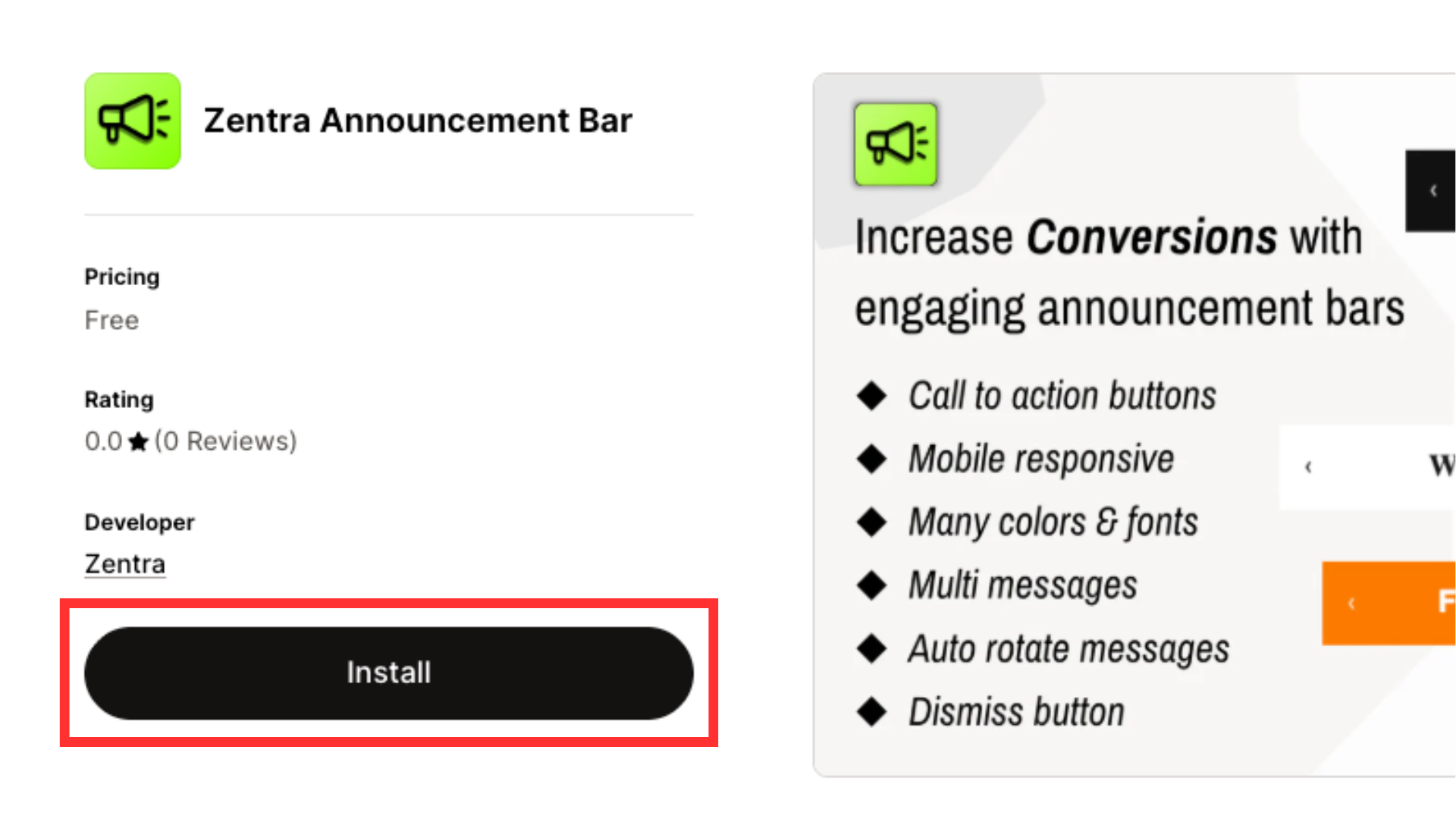
Once installed, you'll see a confirmation message and be redirected to the Zentra welcome page.
On the welcome page, on the quick start tutorial,click the "Activate app embed ->" button.
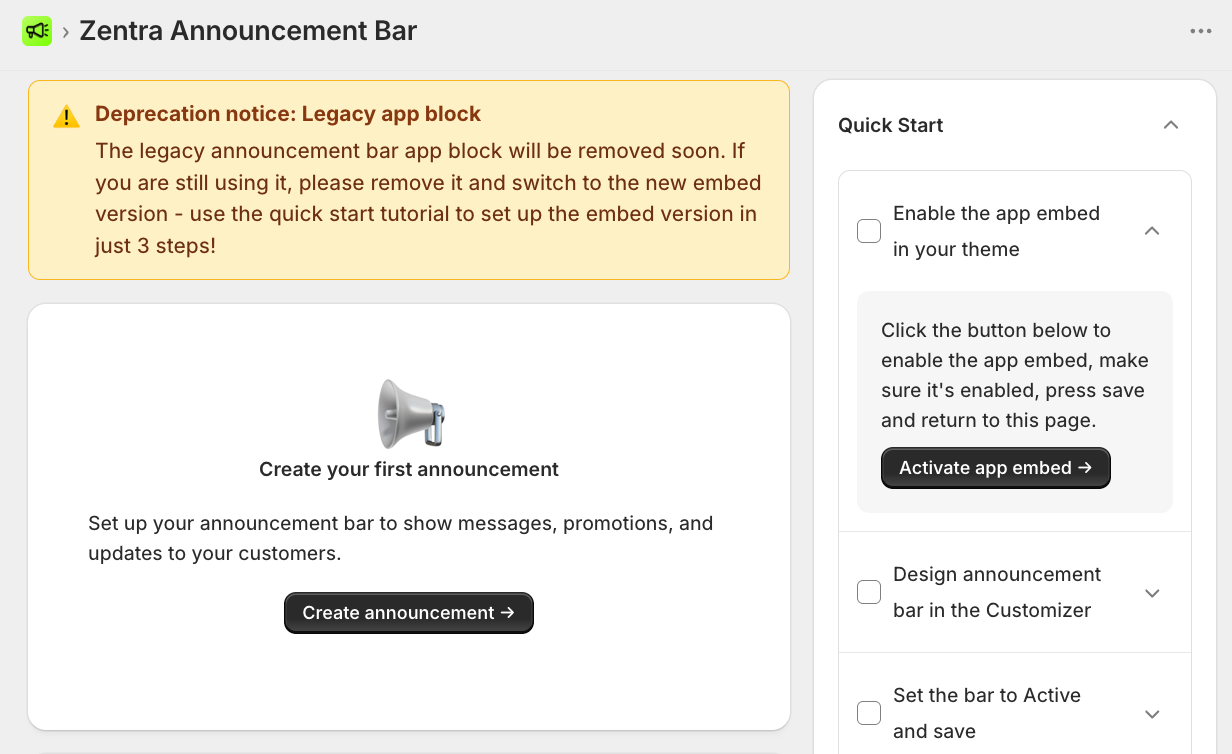
This will take you to the theme editor, to the app embed tab. You should see Zentra Announcement Bar, make sure the embed it toggled so it's active.
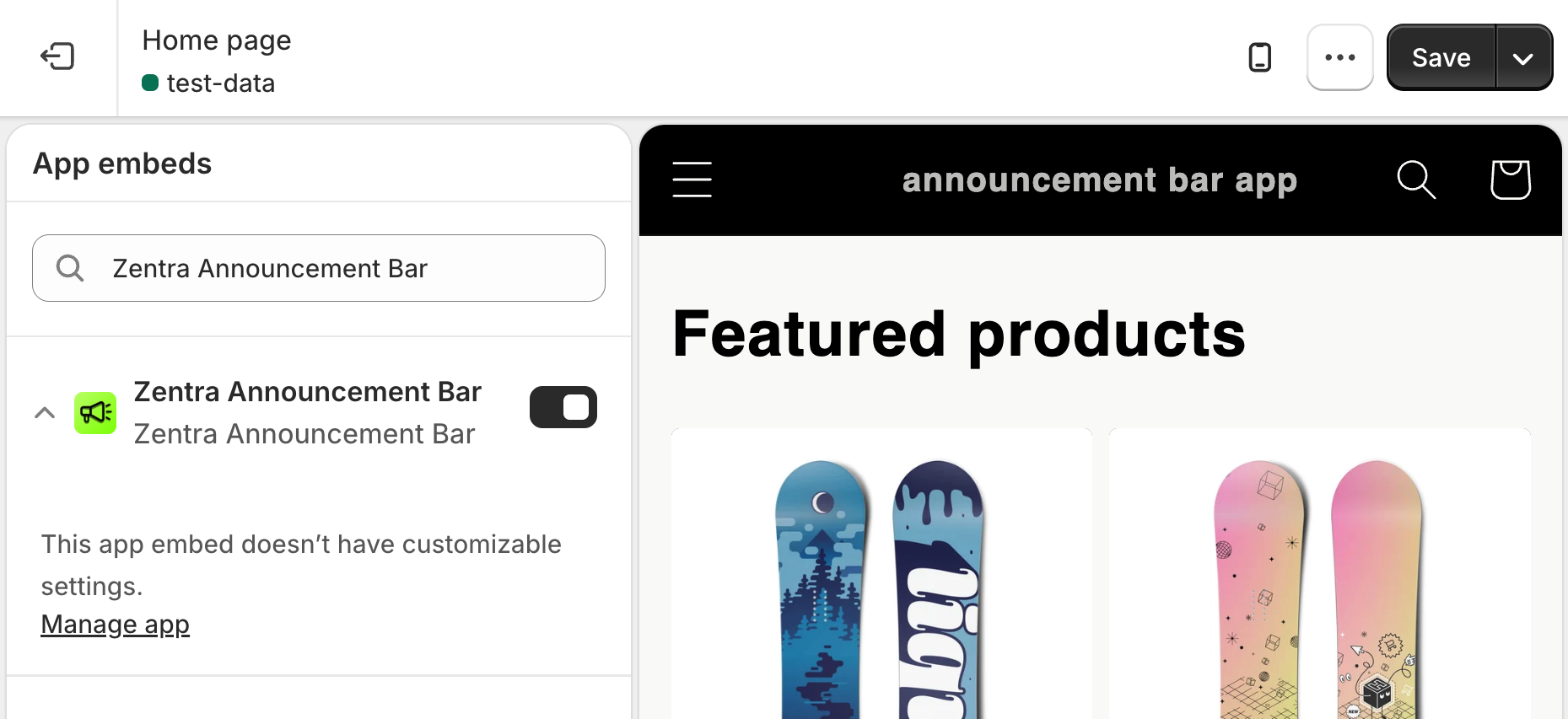
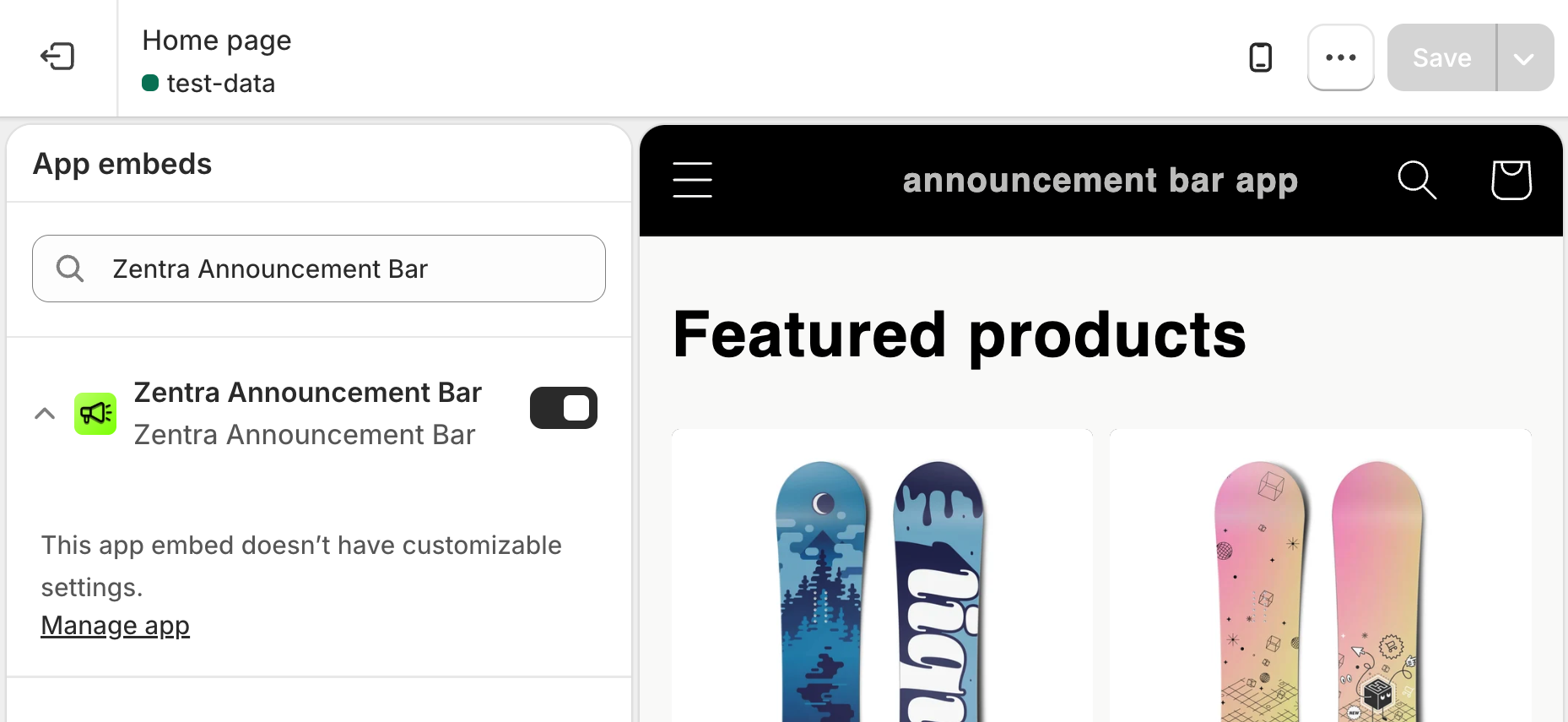
At the top right of the theme editor, press Save
At the top left of the theme editor, press the exit button navigate back to shopify admin.
Navigate to the Zentra app home page, click Customize. This will bring you to the customizer
You should be taken to the customizer page, here you can customze:
- Message text
- Background and text colors
- Font and size
- Text alignment
- Padding and spacing
- Button text (e.g., "Shop Now")
- Button link URL
- Button colors
- Button style
- Etc
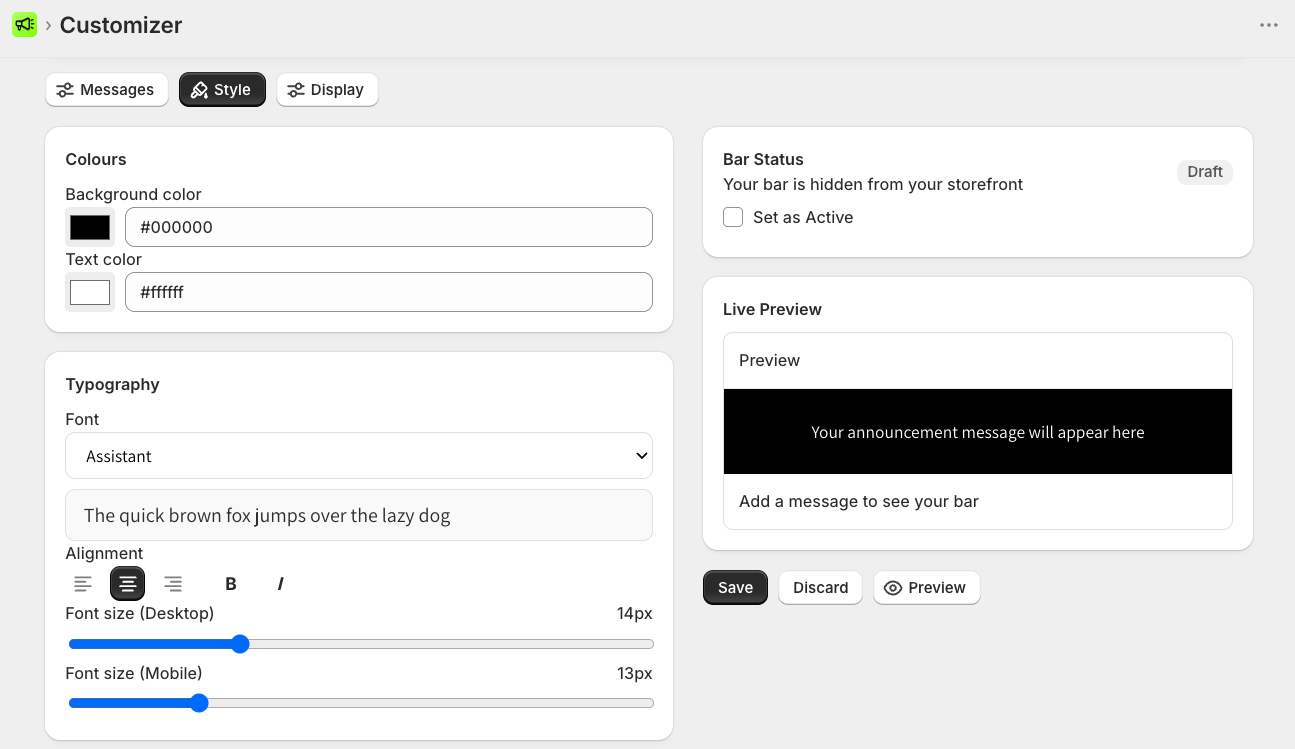
Once you are habby with the result, at the top right click, Save.
Press Preview to see how your announcement bar looks. Keep adjusting if needed
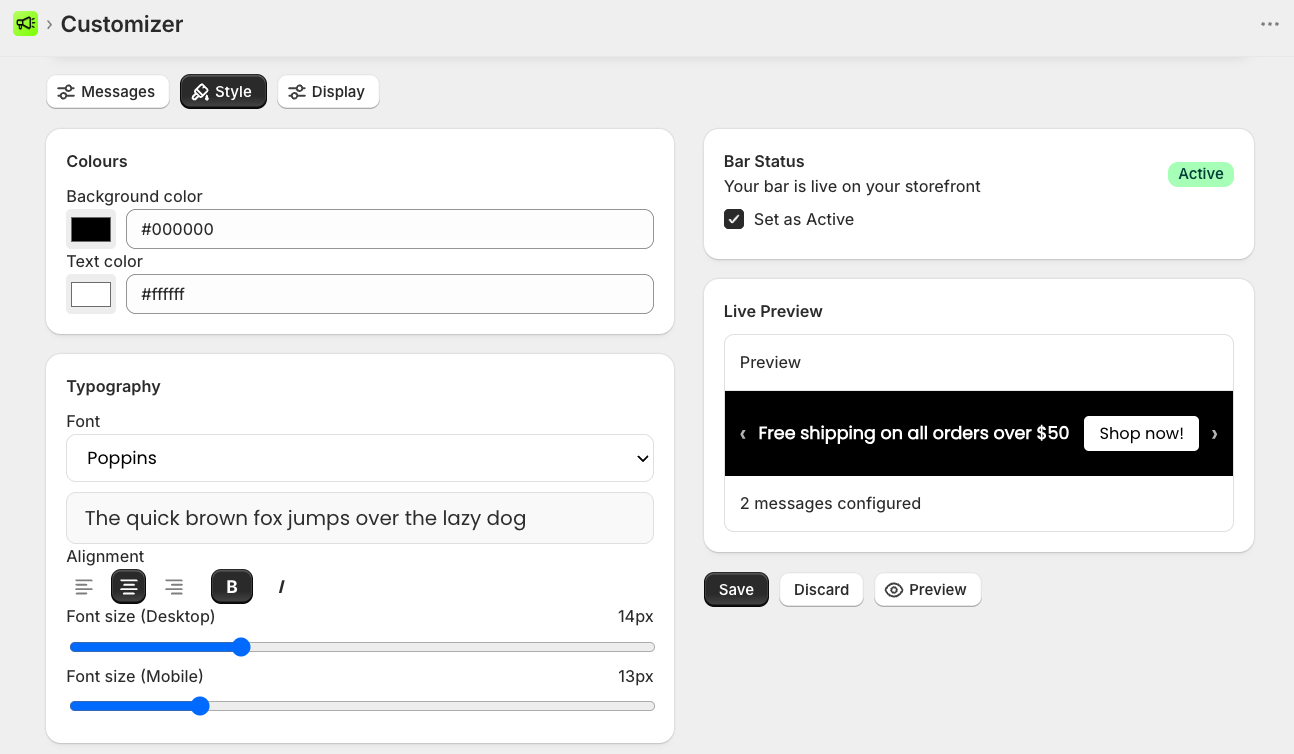
Congratulations! Your announcement bar is now live on your store! 🎉